
Create a new configuration
To create a new configuration, go to File > New.
Then select "Create Team Configuration"
If your account is part of multiple teams, first select which team you would like to build the configuration for. If not, the window will proceed directly to the next screen.
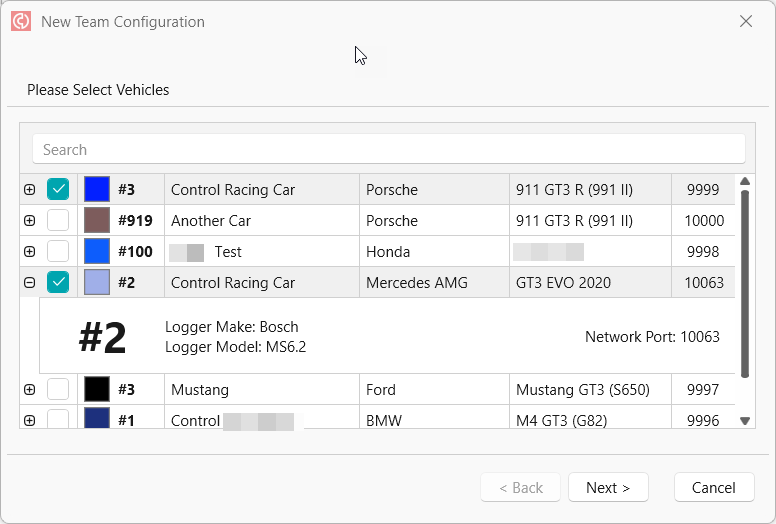
First, the wizard will show you all of the vehicles associated with your team.
The details include: Race Number & Colour, Vehicle Name, Manufacturer, Make & Model, Network Port.
Pressing the (+) button next to the vehicle will allow you to see the vehicle's associated logger make and model.
Use the tick-boxes to select all of the vehicles that you would like to monitor, then press Next to continue.
Next, the wizard will show a list of all the units associated with your team. These can be monitored for coverage separately from the vehicle data to troubleshoot configuration or connection problems.
Alongside Model and Serial Number, if a device is online this screen will show you it's status as well as the venue it has been detected at.
Select all the modems you wish to monitor then press Next again to continue.
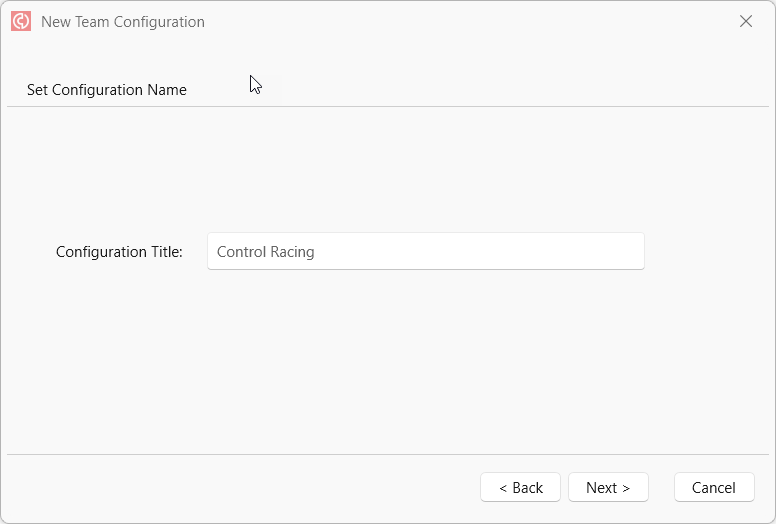
Lastly, give your configuration a name. The default is just to use the team name, but this can be changed to anything you desire.
Once everything is created, simply use the Auto-Configure tools in the ribbon to automatically set up your Telemetry Server with the new vehicles.