
Page: Streams - Configuring Telemetry and Audio Stream
Log in to your device user interface. See separate article in this Section about the Login.
Configuring Telemetry Stream:
To configure all your relevant telemetry stream settings go to Streams and then Telemetry.
To add more streams, click on the New Stream button. If you have licensed additional streams it will allow you here to add and configure them.
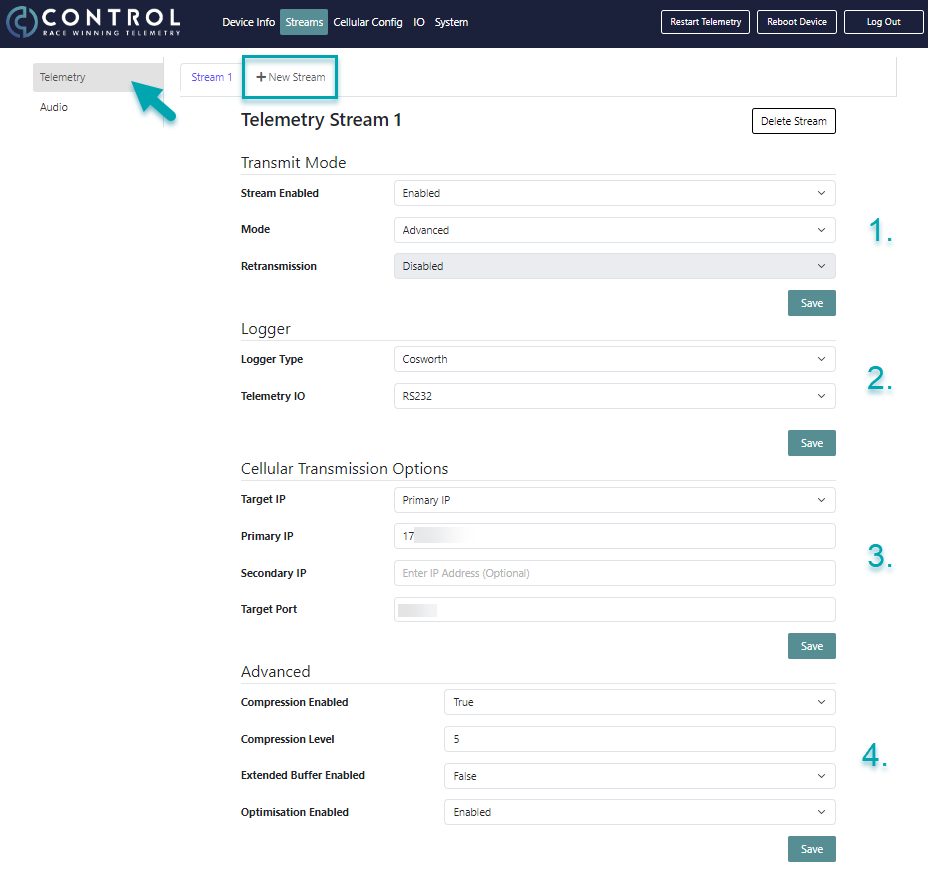
1. Transmit Mode: you can here enable or disable a stream and set the mode to Advanced or Broadcast. Advanced means that one set of data will be sent to the cloud from the Modem with the best connection. Broadcast mode is sending data from all Modems at the same time, which also means that 3 times the data of your data plan will be used. Broadcast mode should be avoided unless in critical circumstances like very crowded races or highly unstable network conditions.
2. Logger: choose the Logger you have in use and the communication interface you want to use.
3. Cellular Transmission Options: here you set the data destination depending on if you are using VPN, a RX device or CAN controlled with the target IP dropdown menu. When choosing only the option Primary or Secondary IP, the data will be sent to the IP address in the corresponding window only. Choosing a dual transmit will also mean twice the data of your data plan sent. For a CAN controlled target IP you need to have some kind of switch in the vehicle (e.g. dedicated button or rotary) and configure the CAN as explained in our CAN subcategory.
Type in the corresponding IP addresses for your VPN and if applicable for your RX Modem. Having both IP addresses in, also if you are just choosing to send the data to one, makes the transition from RX to VPN faster in case you need to. See our article on how to change from RX to VPN in our FAQ section.
Set your Target Port number as visible in Control Studio and save all settings.
4. Advanced: The Compression can be Enabled or Disabled here. When enabled, the Compression Level can be selected on a scale of 1-9. The higher the Compression Level, the more the stream is compressed and therefore data is saved.
The Optimization is optimising the data packets from the ECU or Logger that get sent over the telemetry stream. It can also be enabled or disabled here.
Note: If you are experiencing a loss of data and you have ensured that you have a stable internet connection, a full modem coverage and have respected the bandwidth limit of your logger or ECU, try to disable both Compression and Optimization to improve the result.
Configuring Audio Stream:
For setting up an Audio Stream, go to Streams and then Audio.
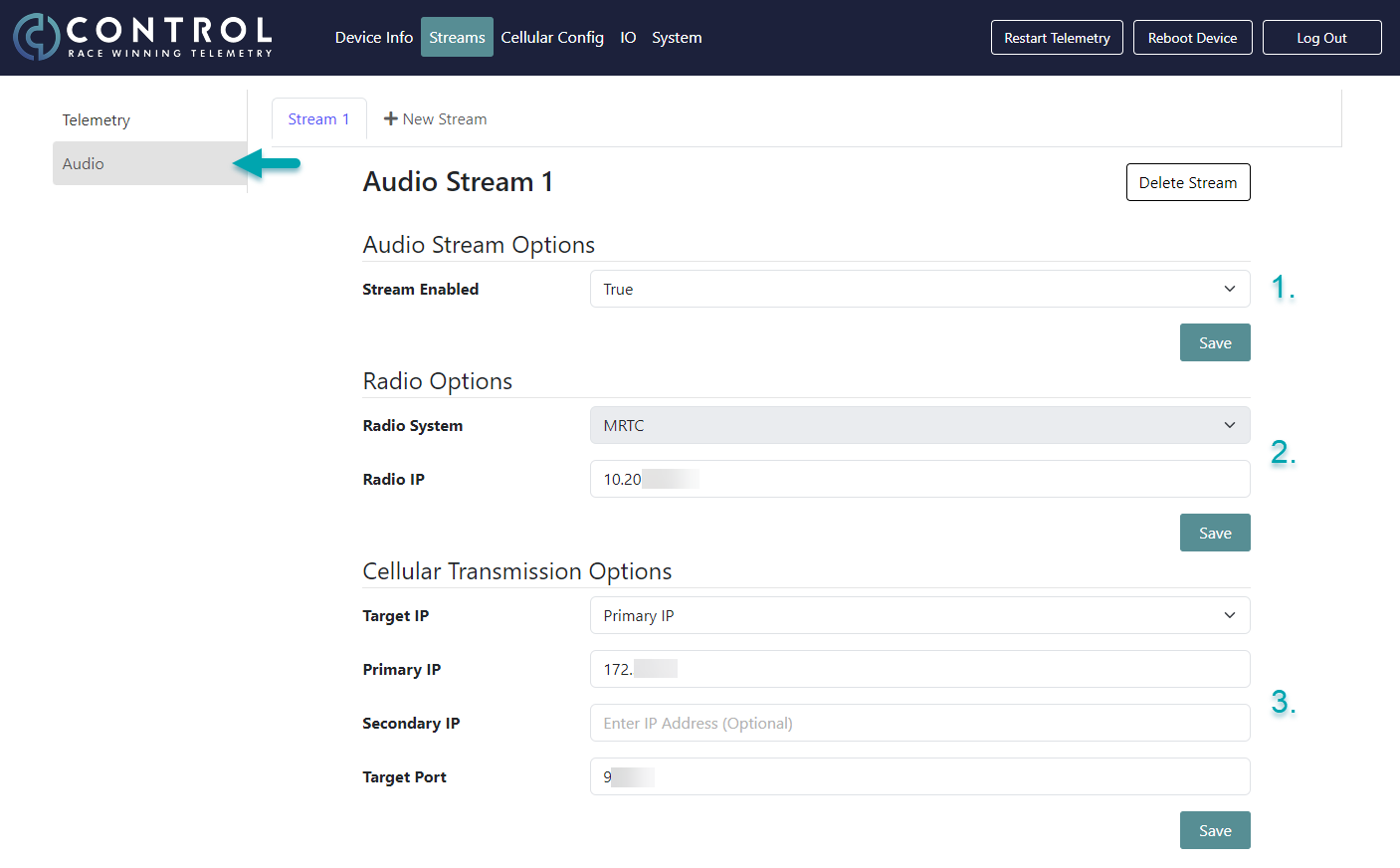
1. Select True for Stream Enabled and confirm your choice with the Save button.
2. The Radio IP address will be supplied by MRTC. Click Save.
3. The Cellular Transmission Options are the same as for your Telemetry Stream with the exception of your target port number which is unique for both the Telemetry and Audio Stream.
Add the according IP address of your VPN, your Rx Modem or the cloud for transmitting the Audio stream accordingly.
Save the settings and Restart the Telemetry with the button in the upper task bar.